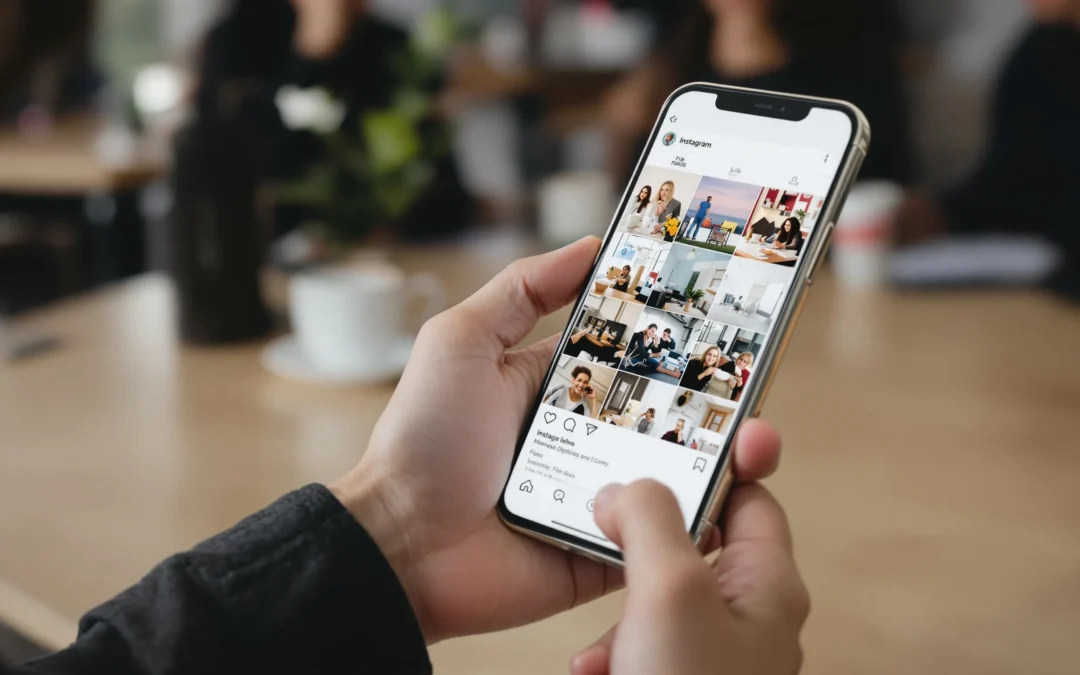
Ever tried to post a perfect photo on Instagram, only to see it cropped in all the wrong places? Maybe your friend’s face gets chopped off, or that dreamy sunset turns into a weird rectangle. If you’ve ever wondered how to get Instagram photos to fit without losing the magic, you’re not alone. I’ve been there—scrolling through my camera roll, cursing the square crop, and wondering if I’d ever get it right. Here’s the part nobody tells you: it’s not just about resizing. It’s about understanding how Instagram thinks, and then outsmarting it.
Why Instagram Crops Your Photos
Instagram started as a square-only platform. Even now, it loves to crop. The app wants your photos to fit its feed, so it squeezes them into a 1:1 square or, if you’re lucky, a 4:5 portrait or 1.91:1 landscape. If your photo doesn’t match, Instagram will crop it—no questions asked. That’s why your group shot turns into a solo portrait, or your landscape becomes a close-up of your shoes.
Here’s why this matters: if you don’t control the crop, Instagram will. And it rarely picks the part you want.
Instagram’s Photo Size Requirements
Let’s break it down. Instagram supports three main aspect ratios:
- Square: 1:1 ratio, 1080 x 1080 pixels
- Portrait: 4:5 ratio, 1080 x 1350 pixels
- Landscape: 1.91:1 ratio, 1080 x 566 pixels
If your photo doesn’t fit these ratios, Instagram will crop or add borders. That’s why knowing how to get Instagram photos to fit is so important. You want your photo to look great, not like an afterthought.
How To Get Instagram Photos To Fit—Step By Step
If you’ve ever struggled with this, you’re not alone. Here’s a simple process to make your photos fit Instagram perfectly, every time.
1. Choose the Right Aspect Ratio Before You Shoot
Most phone cameras let you pick the aspect ratio. If you know you’ll post to Instagram, set your camera to 4:5 or 1:1. This way, you won’t have to crop out your favorite parts later. I learned this the hard way after losing half my dog’s face in a vacation photo.
2. Use Editing Apps to Resize
If your photo’s already taken, don’t panic. Apps like Canva, Snapseed, and Adobe Lightroom let you crop and resize to Instagram’s exact specs. Picsart’s image extender helps expand your images seamlessly, preserving visual balance and preventing important elements from being cut off. Here’s how:
- Open your photo in the app.
- Select the crop tool.
- Choose the Instagram aspect ratio (1:1, 4:5, or 1.91:1).
- Adjust the crop box to keep the important parts in frame.
- Save and upload to Instagram.
Pro tip: If you want to keep the whole photo, add white borders. Apps like Instasize or Whitagram do this in seconds. Your photo stays intact, and Instagram fills the rest with a clean background.
3. Use Instagram’s Built-In Tools
Instagram’s own editor lets you pinch to zoom out and fit more of your photo. But there’s a catch: it only works up to the maximum allowed ratio. If your photo’s too wide or tall, you’ll still lose something. That’s why pre-editing is your best friend.
4. Mind the Details
Here’s the part nobody tells you: Instagram compresses your photos. Even if you get the size right, you might lose sharpness or color. To avoid this:
- Export photos at 1080 pixels wide (never smaller)
- Use JPEG format with 80-90% quality
- Avoid heavy filters that can make compression worse
I once spent an hour editing a sunset, only to see it turn into a pixelated mess after uploading. Don’t let that happen to you.
Common Mistakes (And How To Avoid Them)
Let’s be real: everyone messes this up at least once. Here are the most common mistakes when trying to figure out how to get Instagram photos to fit:
- Ignoring aspect ratios: Leads to awkward crops
- Uploading low-res images: Results in blurry posts
- Overusing borders: Makes your feed look inconsistent
- Forgetting about the feed grid: Some photos look great solo, but weird in your profile grid
Next steps: Always preview your post before sharing. If it looks off, tweak it. Your future self will thank you.
Who Should Care About This?
If you’re a casual Instagrammer who posts once a year, you might not care. But if you want your feed to look sharp, professional, or just not embarrassing, learning how to get Instagram photos to fit is a must. This is for:
- Photographers and artists
- Brands and influencers
- Anyone who wants their memories to look their best
If you’re happy with random crops and blurry uploads, skip this. But if you want control, keep reading.
Advanced Tips For Perfect Instagram Photos
Ready to level up? Here’s what separates the pros from the rest:
- Batch edit: Edit a week’s worth of photos at once to keep your feed consistent
- Use templates: Apps like Canva offer Instagram templates that guarantee the right fit
- Plan your grid: Preview how your photos will look together using apps like UNUM or Planoly
- Test before posting: Create a private account to preview posts before sharing them with the world
Here’s a secret: most big accounts use these tricks. That “effortless” look? It’s anything but accidental.
What If Your Photo Still Won’t Fit?
Sometimes, no matter what you do, Instagram just won’t play nice. Maybe your photo’s an odd shape, or you want to keep every detail. Here’s what you can try:
- Add creative borders or backgrounds that match your brand colors
- Turn your photo into a collage with other images
- Share as a carousel, splitting the image across multiple slides
Don’t be afraid to experiment. Some of my favorite posts came from happy accidents—like turning a failed crop into a cool diptych.
Final Thoughts: Make Instagram Work For You
Learning how to get Instagram photos to fit isn’t just about following rules. It’s about making your photos look the way you want. The next time you’re about to post, remember: you have more control than you think. With the right tools and a little planning, you can make every photo fit—and stand out.
So go ahead. Show off your full sunset, your whole crew, or that perfect plate of food. Instagram’s crop doesn’t have to win. You do.